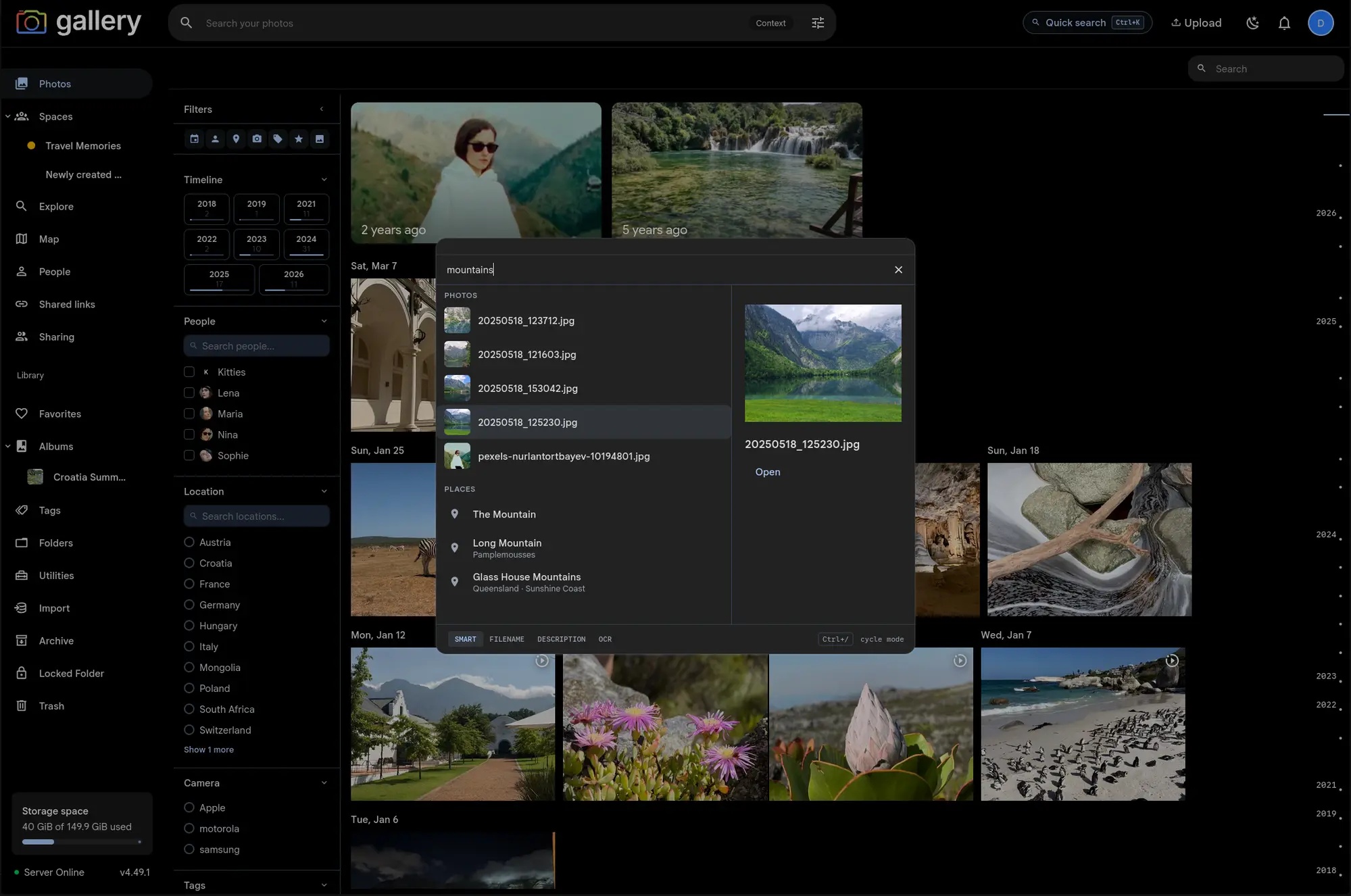
A keyboard-first command palette that searches photos, people, places and tags, and jumps to any settings page. Cmd/Ctrl+K opens it from anywhere in Gallery.
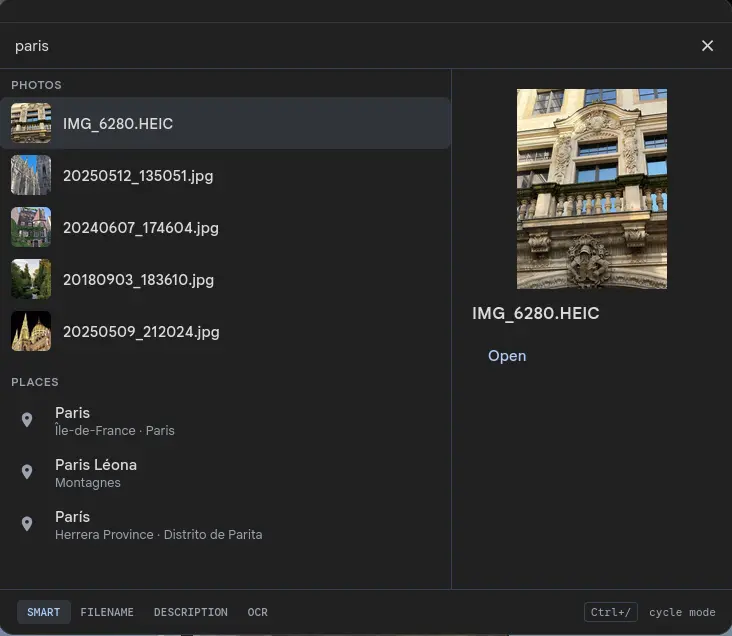
Press Cmd+K on macOS or Ctrl+K anywhere else, and a search box opens over whatever page you're on. Gallery hits five providers in parallel (photos, people, places, tags and the page catalog) and groups the results into named sections. Arrow to one and press Enter: the palette knows whether to open the asset viewer, jump to a person's page, drop you on a map, or navigate to a settings screen.
The classic search bar in the navbar still works exactly as it did. The palette is the faster way in when you already know roughly what you want.
Four ways to search your photos
Smart is the default: CLIP semantic search, ranking by visual meaning, so "kitten on a couch" works even if no one ever typed those words. Filename matches the original file name, which helps when you remember an export pattern or a camera's naming scheme. Description hits any captions you've added.OCR searches text Gallery extracted from the photos themselves: receipts, signs, screenshots.
Cycle the modes with Ctrl+/ without leaving the input. The footer shows the active mode and the keyboard hint.
If the ML server is unreachable, the palette notices and offers a one-click flip to filename mode, so a flaky machine-learning container doesn't take search down with it.
Prefix shortcuts scope to one kind of thing
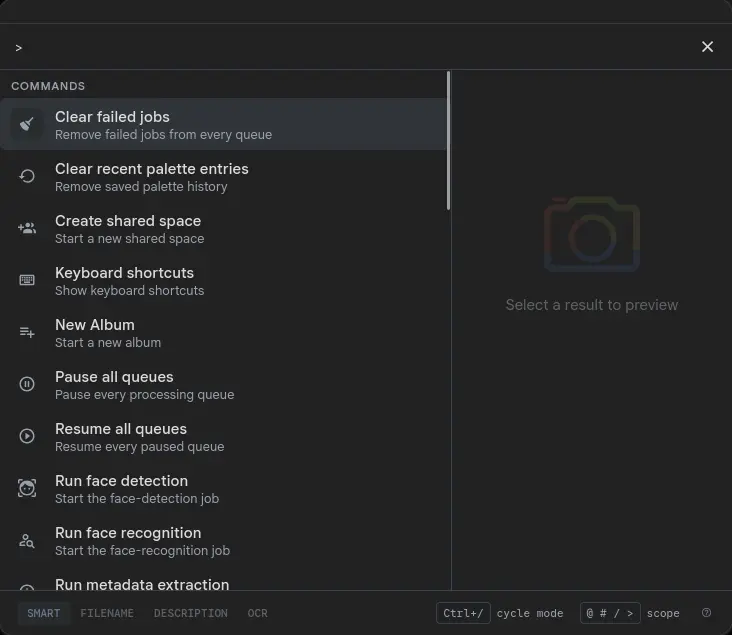
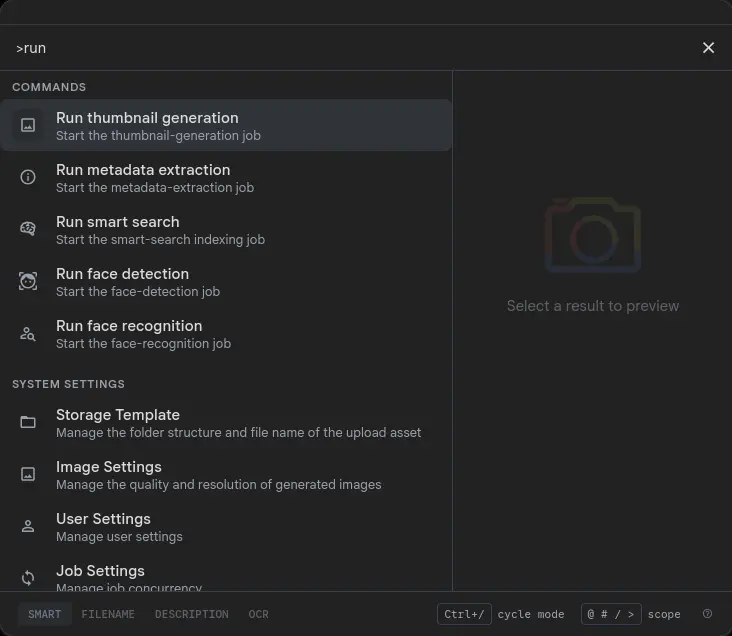
Start the query with a prefix character and the palette drops to a single section: @alice for people,#xmas for tags, /trip for albums and shared spaces, >theme for commands and navigation. The prefix is consumed by the palette and never becomes part of the query text.
Type just the prefix with nothing after it and you get the full index for that scope: your people and tags by most recently updated, your most recently active albums and spaces, or every command and navigation entry you have access to. One keystroke turns the palette into a browser for recent activity.
Commands fire verbs without leaving the page
A Commands section sits alongside the entity sections, holding stateless verbs you can fire from the palette. Out of the box: Upload files, Create album, Create shared space, Keyboard shortcuts, Toggle theme, Sign out, Clear palette recents. When a command and a navigation entry score similarly against an unscoped query, the command wins the Top result slot, so plain album creates a new album on Enter and plain upload opens the file picker.
Administrators get an extra group for driving the job queues: Run thumbnail generation, Run metadata extraction, Run smart search, Run face detection and Run face recognition, plus the blast-radius bulk verbs Pause all queues, Resume all queues and Clear failed jobs. EachRun command fires a parallel request and confirms with a toast; the bulk verbs hit every admin-visible queue at once and report partial failures inline. Non-admins never see any of them.
Verbs that follow you onto the page
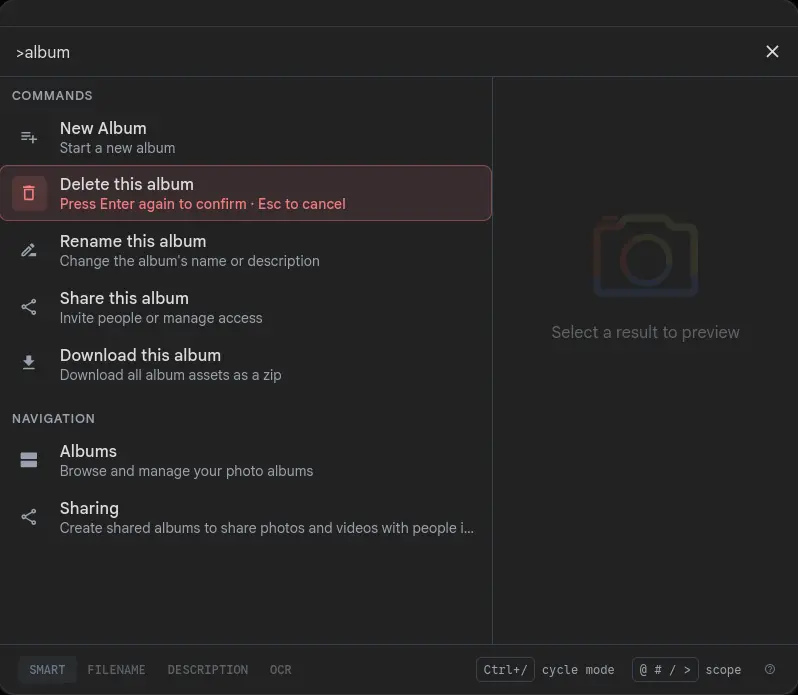
Open the palette while you're viewing an album and the Commands section grows Rename this album, Share this album, Download this album, and either Delete this album or Leave this shared album. On a space page: Add a member to this space, Manage space members, Add all my photos to this space, and Delete this space or Leave this space, depending on whether you own it. The commands disappear the moment you navigate away.
Each verb is gated on the same permissions the rest of the UI uses, so a viewer never sees "Add member", a non-owner never sees "Delete", and a space owner never sees "Leave" (you can't leave a space you own).
A two-step confirm for anything you can't undo
Deleting an album, deleting a space, leaving a shared one: none of these fire on a single stray Enter. The first Enterarms the row. Background tints red, an inset ring outlines it, and the subtitle swaps to "Press Enter again to confirm · Esc to cancel". The second Enter fires. Esc cancels, and so does arrowing away or picking a different command. A 3-second timeout clears it if you get distracted.