Crop and rotate were not enough
Immich's editor can crop, rotate and mirror. The moment a photo was a little dark, a little flat or a little grey, you had to download it, fix it somewhere else and upload a second copy. In a family library that second copy then lives next to the first one forever.
Four controls, live
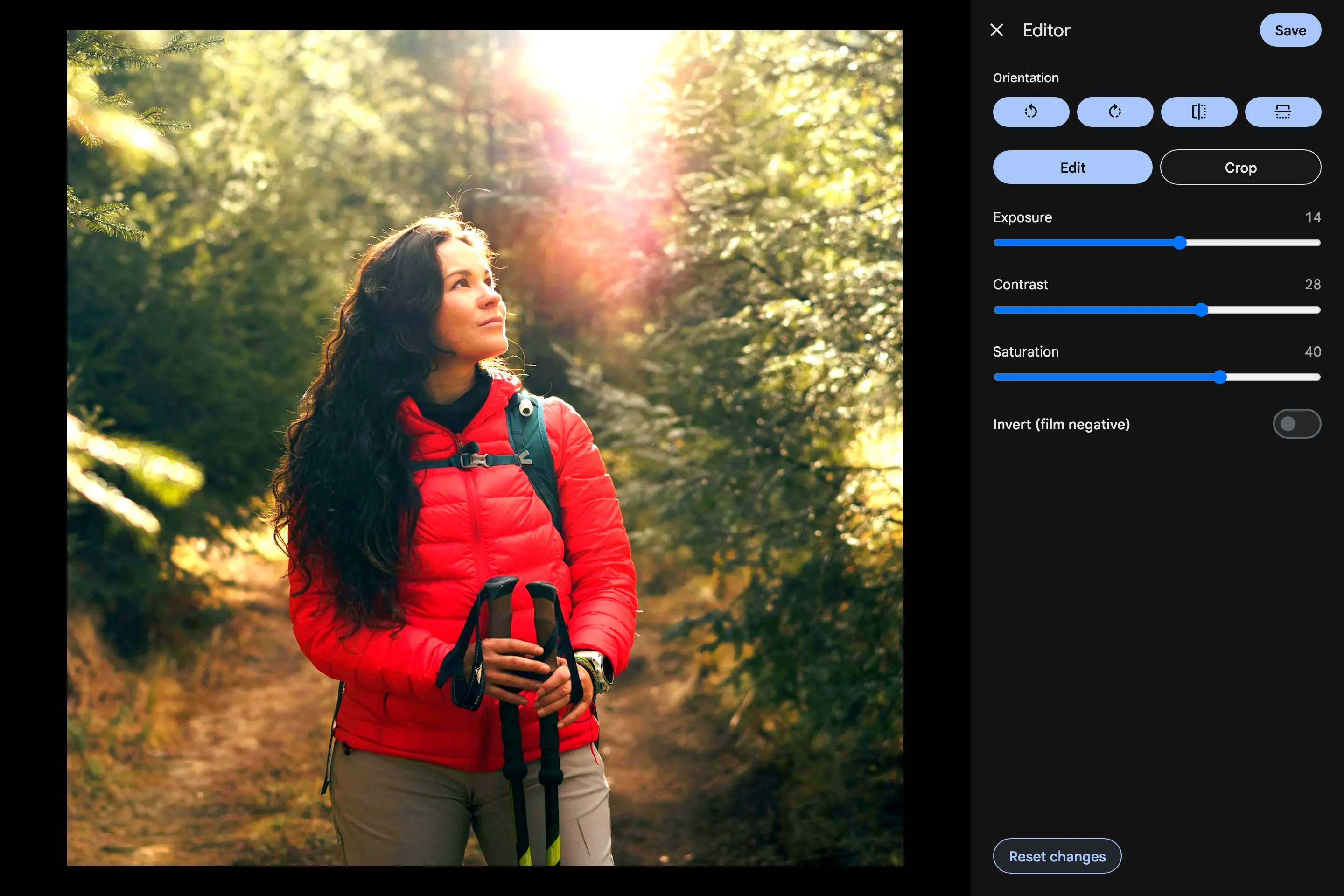
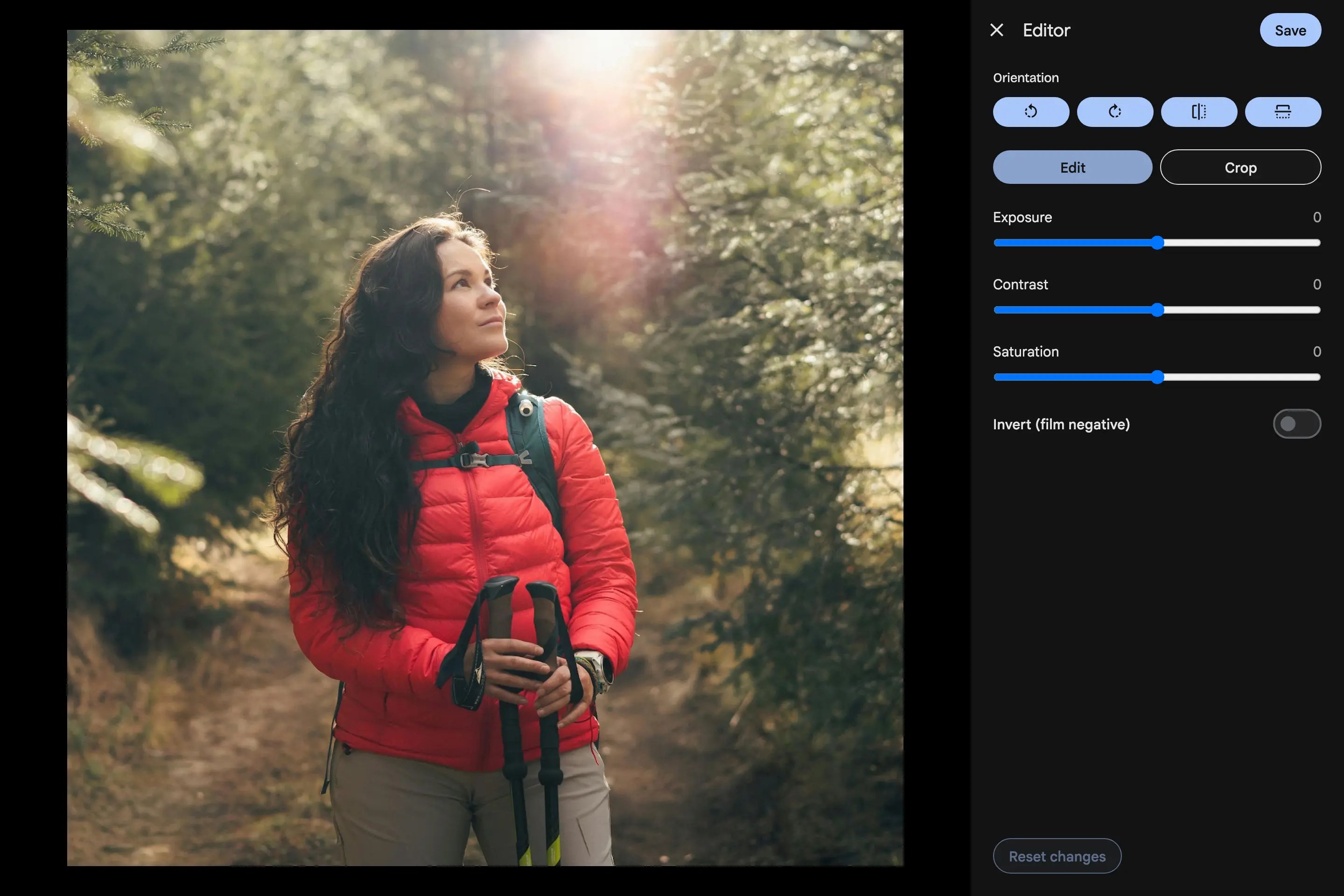
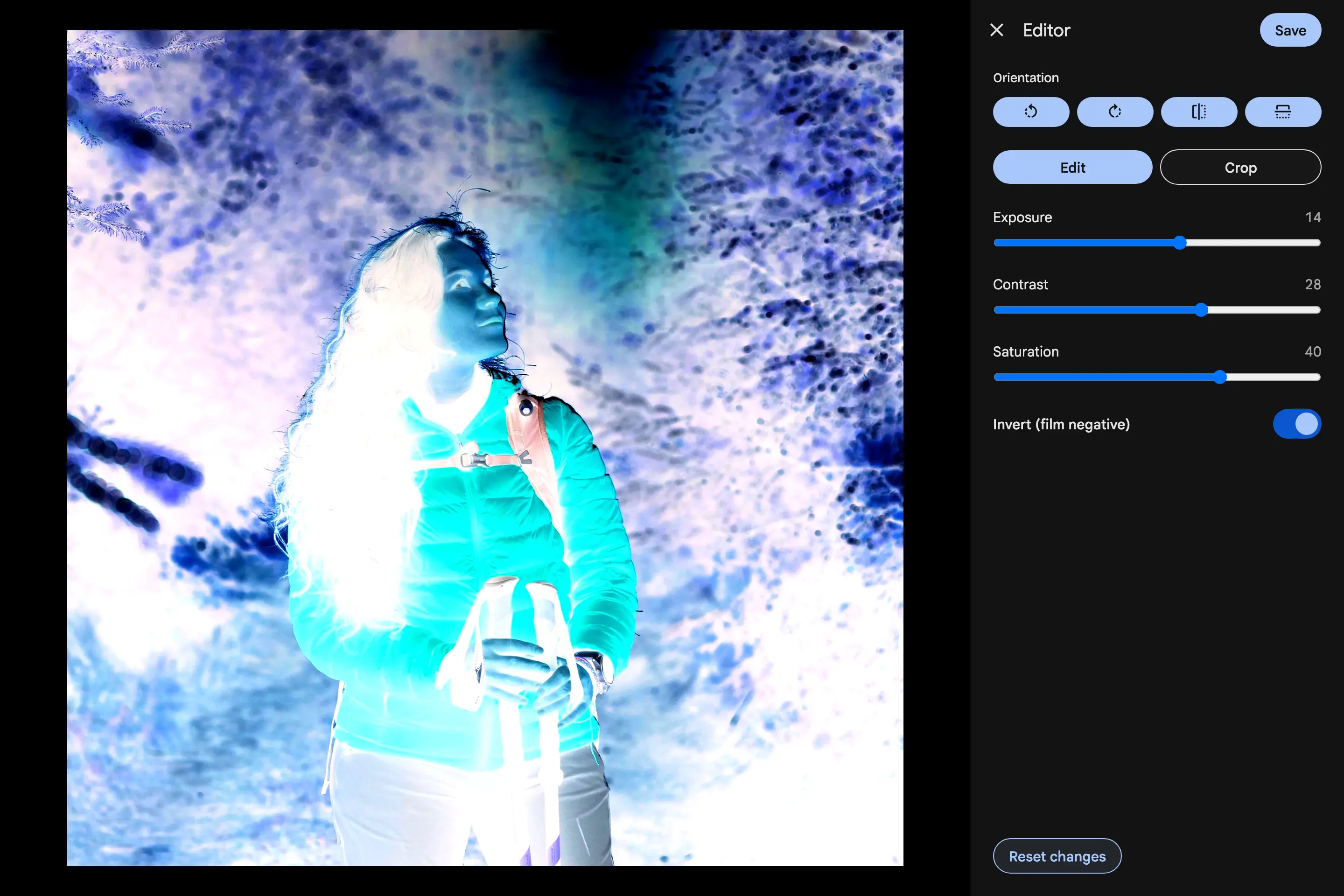
The editor now opens on an Edit panel beside Crop. Exposure, Contrast and Saturation each run from -100 to +100, and Invert turns a scanned film negative back into a positive. The preview uses the same formulas as the saved result, so what you see while dragging is what you get. Double-click a slider to reset just that value.
Safe next to everything else
Adjustments are stored next to the crop, rotate and mirror edits, not mixed into them, and they are applied after them. Older apps and a stock Immich server never see an edit they cannot read. Reset changes removes them in one go, and switching back to Immich drops the adjustments and keeps the rest.
Where it works
Adjustments are made in the web app. The phone apps show the adjusted photo, and cropping or rotating it there keeps the adjustment. Space editors who can edit members' photos get the same tool.